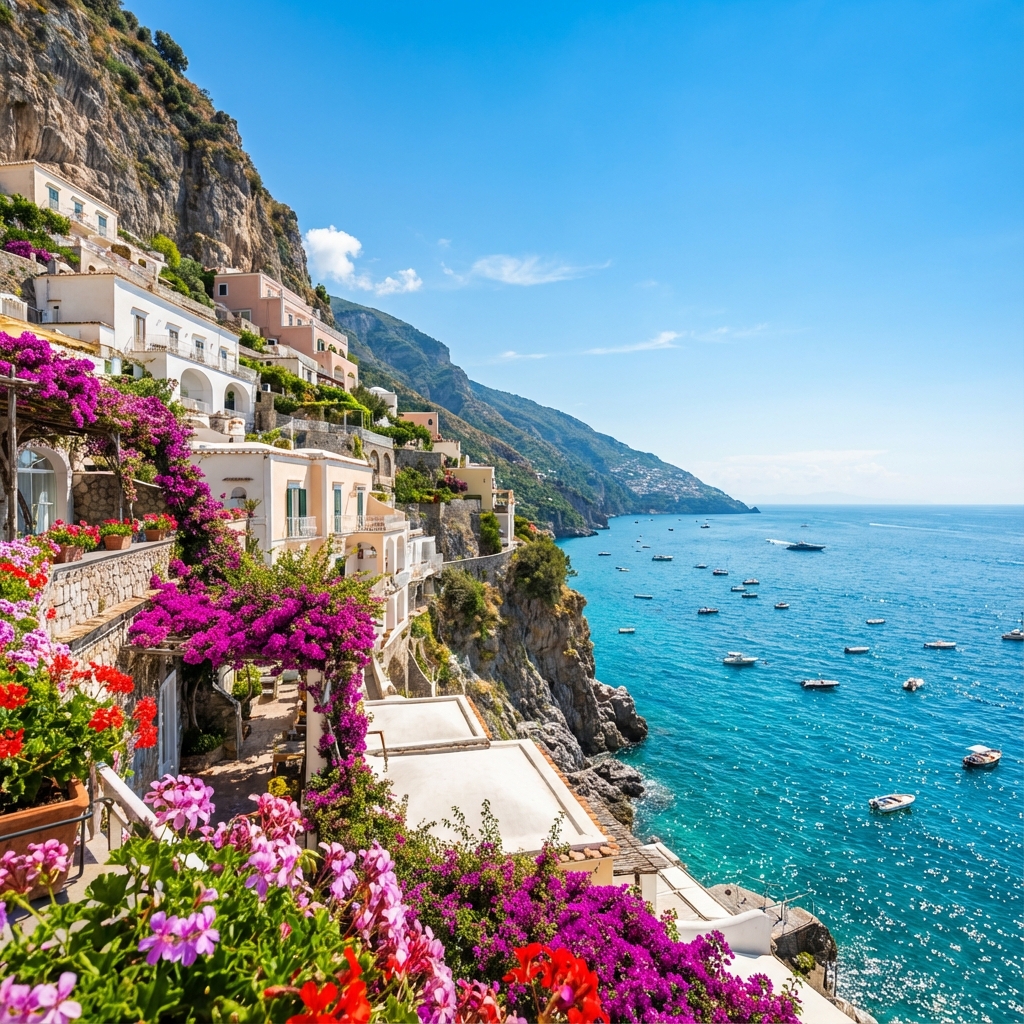
Color grading separates good photos from great ones. It's how filmmakers create mood, how fashion photographers create their signature look, and how you can transform your images from snapshots into art. Orlume's HSL color mixer gives you precise control over every color in your image.
Understanding HSL
HSL stands for Hue, Saturation, and Luminance — three properties that together define any color:
- Hue: The actual color — red, orange, yellow, green, etc. Shifting hue changes colors to adjacent colors on the color wheel.
- Saturation: The intensity or purity of the color. High saturation means vibrant colors; low saturation moves toward gray.
- Luminance: The brightness of the color. Affects how light or dark specific colors appear.
The 8 Color Channels
Orlume's HSL mixer provides independent control for 8 color ranges:
- Red: Affects reds, some skin tones, lips, red clothing
- Orange: The most important channel for skin tones, also affects warm elements
- Yellow: Yellow elements, some foliage, warm highlights
- Green: Grass, trees, foliage, green objects
- Aqua: Teal tones, some skies, water
- Blue: Skies, blue clothing, shadows often have blue tones
- Purple: Lavender, violet flowers, some twilight skies
- Magenta: Pink tones, some flowers, certain skin undertones
Essential Color Grading Techniques
Perfecting Skin Tones
Skin tones primarily fall in the Orange and Red channels. For natural-looking skin:
- Reduce Orange saturation slightly to avoid overly warm skin
- Shift Orange hue slightly toward yellow for a healthier glow
- Increase Orange luminance to brighten skin without affecting other colors
- Be gentle with Red — aggressive changes affect lips and can look unnatural
Cinematic Teal and Orange
The classic Hollywood look uses complementary colors — teal shadows and orange highlights:
- Shift Blue hue toward Aqua (teal)
- Increase Aqua saturation
- Push Orange saturation up and shift slightly toward yellow
- Reduce Green saturation to keep the palette focused
Enhancing Landscapes
For impactful nature photos:
- Shift Green hue slightly toward yellow for warmer foliage
- Increase Blue saturation for dramatic skies
- Reduce Blue luminance to deepen sky colors
- Boost Yellow luminance for glowing golden hour effects
Moody Desaturation
For a muted, editorial look:
- Reduce saturation across all channels by 10-20%
- Shift greens toward yellow or aqua
- Keep one accent color saturated for visual interest
- Adjust luminance to maintain contrast
Using Orlume Presets
Want a starting point? Orlume includes 40+ professional presets across 6 categories:
- Portrait: Optimized for skin tones and flattering color
- Landscape: Enhanced greens, blues, and natural tones
- Urban: Contrasty looks for street and city photography
- Creative: Bold, artistic color treatments
- Black & White: Monochrome conversions with various tonal qualities
- Golden Hour: Warm, sunset-inspired looks
Apply a preset, then use the HSL mixer to fine-tune to your taste. Presets are a starting point, not a destination.
Pro Tips
- Work in order: Adjust hue first, then saturation, then luminance
- Make small changes: Subtle adjustments often look more professional than dramatic shifts
- Check skin tones: After any adjustment, verify that skin still looks natural
- Use the color picker: Not sure which channel affects a color? Use the picker to identify it
- Compare often: Toggle the effect on and off to evaluate your changes
Start Color Grading
Ready to master color? Open the Orlume Editor with the HSL panel and start experimenting. It's completely free, runs in your browser, and your photos stay private on your device.